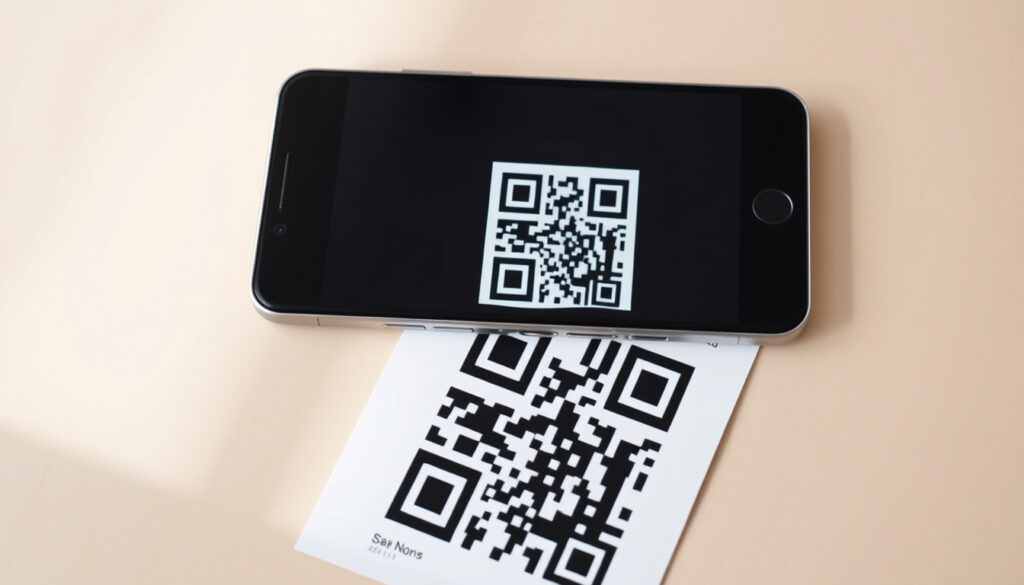
How to Scan a QR Code on My Phone Screen or Photos
You know that moment when a friend sends you a QR code in a chat, and you instinctively reach for a second phone before remembering you only carry one? Scanning QR codes from saved images and screenshots used to require workarounds — but modern phones handle it natively. Here’s how to scan any QR code directly from your phone’s screen or photo gallery.
iPhone Access: Control Center Scan Code button · Android Access: Swipe down Quick Settings QR icon · Samsung Access: Camera app direct scan · From Photos iPhone: Long-press QR image · Google Lens Integration: Camera or app for QR scan
Quick snapshot
- iOS 15 (September 2021) added Live Text for image QR scanning (Uniqode)
- Android 9 (August 2018) introduced native QR support (Uniqode)
- iOS QR detection typically completes in under 300ms (Next Star Systems)
- Exact success rate of screen-reflection scans varies by device brightness and display type
- Battery consumption metrics during extended QR scanning sessions lack published benchmarks
- iOS 11 (September 2017): Basic QR camera scanning added (Uniqode)
- iOS 15 (September 2021): Live Text feature launched (Uniqode)
- iOS 18 (September 2024): Image QR scan confirmed supported (Uniqode)
- QR codes increasingly embedded in digital receipts and event tickets
- Google Lens expanding to more Android system integration points
These specs cover the native scanning capabilities across major mobile platforms.
| Feature | Details |
|---|---|
| iPhone Built-in | Yes — Control Center (Uniqode) |
| Android Built-in | Quick Settings most devices (Uniqode) |
| Samsung Method | Camera app auto-detect (Samsung Tutorial) |
| Gallery Scan iPhone | Long-press image (Uniqode) |
| iOS Minimum | 11 for camera QR; 15 for image QR (Uniqode) |
| Android Minimum | 9 for native QR (Uniqode) |
| Cross-platform Tool | Google Lens (Android/iOS) (QR Code Chimp) |
How do I scan a QR code that’s already on the phone?
Scanning a QR code that exists as an image on the same device you’re using requires a workaround, because pointing your camera at your own screen creates feedback loops. Both iOS and Android offer built-in solutions for this common scenario.
iPhone screen scan
- Open the Control Center by swiping down from the top-right corner (or up from the bottom on older iPhones)
- Tap the Scan Code button
- Select the photo icon to choose a QR image from your gallery
- Adjust the framing box over the QR code and tap the banner to open the link
Apple’s Vision framework delivers detection in under 300ms on modern devices, making this method feel instantaneous (Next Star Systems). The iOS 18 update confirmed continued support for this workflow.
Android screen scan
- Swipe down from the top of your screen to open Quick Settings
- Tap the QR scanner tile (if not visible, add it via Quick Settings customization)
- Use the gallery icon to select an image containing the QR code
- Position the detection frame and tap the result
The implication: both platforms now treat gallery-based QR scanning as a first-class feature rather than a workaround.
Can I scan a QR code on my phone screen?
Yes, with the right approach. Direct camera-to-screen scanning can sometimes trigger the camera’s auto-focus on the moving pixels of your display, but built-in tools bypass this issue entirely.
Built-in camera limitations
Pointing your camera directly at a phone screen showing a QR code often fails because the camera struggles to distinguish the QR pattern from the screen’s pixel refresh. Android’s Camera2 API with ZXing and ML Kit can achieve sub-second detection on modern devices, but results vary by manufacturer (Next Star Systems).
Workarounds with apps
- Google Lens: Available on both Android and iOS, Lens can analyze any image including screen captures
- Samsung Quick Settings: Dedicated tile with gallery import function
- Secondary device: Display the QR on one screen, scan with another device’s camera
What this means: you never need a second phone — the software handles what the hardware cannot.
Where is my QR scanner on my phone?
The scanner lives in different places depending on your platform. Once you know where to look, it’s usually a swipe or tap away.
iPhone location
- Control Center: Swipe down from top-right corner → tap “Scan Code”
- Camera app: Open Camera, point at QR — iOS 11 and later supports this natively
- Photos app: Open image, long-press on QR or tap the Live Text icon
Enable QR scanning in Settings > Camera if the feature seems absent — the toggle controls whether the viewfinder actively looks for codes (Uniqode).
Android Quick Settings
- Swipe down twice from the top of the screen to reveal Quick Settings tiles
- The QR scanner tile appears as a camera or barcode icon
- Long-press to edit and drag tiles into position if missing
Pixel and Android One devices can link Google Lens directly to the camera app for faster access (QR Planet).
How do you scan QR codes on Android?
Android offers two primary paths: Quick Settings for on-screen QR, and Google Lens for gallery-based scanning. Both are native — no downloads required on modern devices.
Quick Settings method
- Swipe down from the top of your screen to open Quick Settings
- Tap the QR scanner icon
- Point your camera at the QR code
- Tap the notification to open the link
Camera app method
- Open your camera app
- Point at the QR code — most Android cameras auto-detect without enabling anything special
- Tap the banner that appears with the decoded content
Samsung Galaxy devices include Bixby Vision as an alternative to Google Lens, offering device-specific QR recognition (QR Planet).
The catch: older Android devices below version 9 require third-party apps for native QR support (Uniqode).
How to scan a QR code from a picture on your phone?
Both platforms now let you extract QR codes from saved images, screenshots, and received photos — no camera required.
iPhone Photos app
- Open the Photos app and select the image containing the QR code
- iOS 15 and later: press and hold on the QR code area
- Tap the link preview banner to open the decoded URL
- Alternatively, tap the Live Text icon (corner of image) to reveal detected codes
This works on iOS 15 through iOS 18, including all iPhone models that received the iOS 15 update (Uniqode).
Android gallery scan
- Open Google Photos and select the image
- Tap the Google Lens icon (typically bottom-right or top-right)
- Lens highlights detected QR codes — tap to open
- Use the share icon → Google Search Image as an alternative path
Google Lens works on Chrome for both Android and iPhone, extending this capability to any browser-opened image (QR Code Chimp).
Step-by-step: Complete QR scanning guide
- iPhone (live scan): Swipe down from top-right → tap Scan Code → point camera at QR → tap banner
- iPhone (from image): Open Photos → select image → long-press QR → tap preview banner
- Android (Quick Settings): Swipe down twice → tap QR scanner → select gallery icon → choose image → adjust frame
- Android (Google Photos): Open Photos → select image → tap Lens icon → tap detected QR
- Samsung Galaxy: Swipe down → tap Scan QR tile → gallery icon → select image → position detection box
- Cross-platform: Open Chrome → navigate to image page → tap and hold → “Search image with Google Lens”
Google Lens bridges both platforms: download the app on iPhone or enable it on Android for consistent gallery QR extraction across devices.
Clarity on what works and what’s uncertain
Confirmed
- iOS 15+ uses Live Text for QR detection in Photos
- Android and iOS both allow gallery QR scanning without third-party apps
- iOS Vision framework delivers consistent under-300ms detection
- Samsung Quick Settings includes dedicated QR scanner tile
Reportedly uncertain
- Exact screen-reflection success rate varies by device brightness settings
- Security comparisons between native tools and third-party apps lack published benchmarks
“iOS benefits from Apple’s tightly coupled hardware and software stack… delivering consistently fast detection — often under 300 ms.”
— Next Star Systems (Tech Comparison Analysis)
“Both iOS and Android devices allow you to scan a QR Code from an image in your gallery without any third-party application.”
— Uniqode (QR Technology Guide)
Related reading: code cracker solver tools · SWIFT code guide
bitly.com, contactco.com, youtube.com, socketmobile.com, youtube.com, pageloot.com, tera-digital.com
Built-in options like Control Center or Google Lens work great, while iPhone and Android scanning steps provides detailed iPhone and Android walkthroughs for screen or photo QR codes.
Frequently asked questions
How to scan a QR code on my iPhone?
Open Control Center and tap “Scan Code,” then use the gallery icon to select an image with a QR. Alternatively, open the image in Photos, long-press on the QR area, and tap the preview banner. Both methods work on iOS 15 and later.
How to scan a QR code on my Samsung phone?
Swipe down to open Quick Settings and tap the “Scan QR code” tile. Use the gallery icon to import an image, then adjust the detection box. Samsung also supports Bixby Vision as an alternative scanning method.
What is Google Lens for QR codes?
Google Lens is Google’s image recognition tool built into Android Photos and available as an app for iPhone. It detects QR codes in images and can open the encoded links directly. Works on both Android and iOS devices.
Can I use apps to scan QR from screen?
Yes. Third-party apps like QR Code Scanner (Android) or built-in tools on both platforms handle gallery imports. The native methods (Control Center on iPhone, Quick Settings on Android) now cover most use cases without additional downloads.
Where do I find the QR code in Settings?
On iPhone, check Settings > Camera and ensure “Scan QR Codes” is enabled. On Android, QR functionality lives in Quick Settings and the camera app rather than Settings menus — add the QR tile by editing Quick Settings.
How to scan QR code on any Android?
Open Quick Settings, tap the QR scanner tile, and point your camera at the code. For gallery images, open Google Photos, tap the Lens icon, and tap the detected QR. Android 9 (2018) and later support native scanning without third-party apps.
Is a second phone needed for screen QR?
No. Both iOS and Android include gallery-based QR scanning that works on images saved to your device. Use Control Center on iPhone or Quick Settings on Android, select the gallery icon, and scan the image — no second device required.
More related posts
 Air New Zealand Call: Official Phone Numbers & 24/7 Support
 Secret Life of Walter Mitty: Meaning & Reviews
 Copper Price Per Kg: Today’s Rates, Scrap Value & Forecast
 New Balance 550s for Men: Fit, Style, and 2026 Review
 Maxi-Cosi Car Seats: i-Size vs ISOFIX 2026 Legal Facts
 Diamond Lake & Rocky Mountain Track: Complete Hiking Guide
 Why Does Trump Want Greenland – Strategic Reasons Explained
 Best Exercises Without Equipment: Build Muscle & Burn Calories
