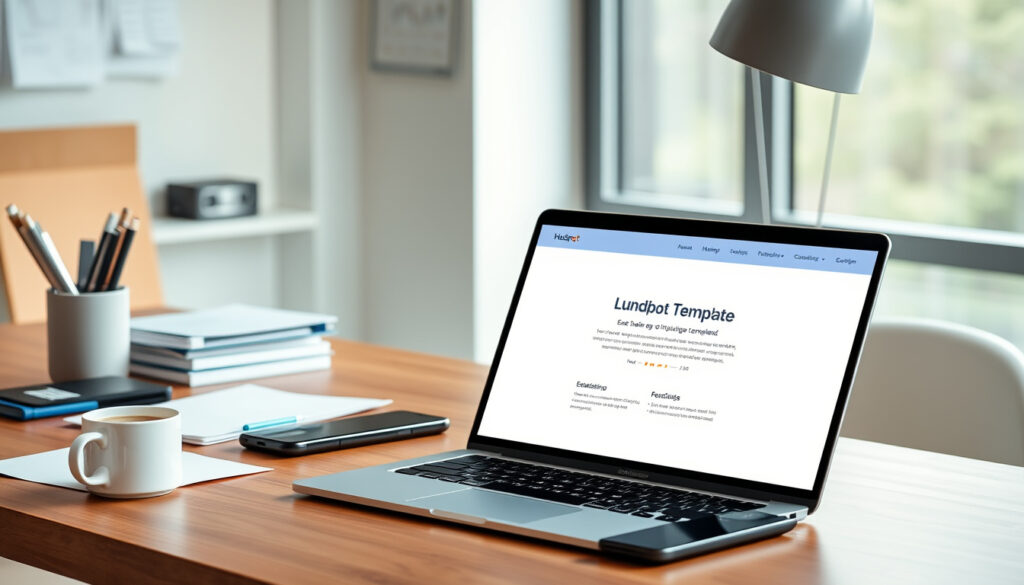
HubSpot Landing Page Templates: Free & Premium Guide 2026
If you have a landing page to build and the thought of writing a single line of CSS feels wrong, HubSpot’s template ecosystem is probably the reason you clicked this article. Hundreds of pre-built layouts sit in the official marketplace, ranging from free starters to premium designs that cost a few hundred dollars. This guide maps out the full landscape—free vs. paid, how to customize, and what the builder actually does—so you can choose the right template and get a high-converting page live in hours, not days.
Templates available in marketplace: 437 ·
Free templates available: 100+ ·
HubSpot CRM integration: Yes ·
Drag-and-drop editor: Yes ·
A/B testing capability: Yes in paid plans ·
Mobile responsive: All templates
Quick snapshot
- HubSpot marketplace lists 437 landing page templates (HubSpot Marketplace)
- Free templates include basic layouts with limited customization (6Minded Blog)
- Drag-and-drop editor included in all templates (HubSpot Knowledge Base)
- Templates are mobile-responsive out of the box (HubSpot Knowledge Base)
- Exact count of free templates in the marketplace is not documented
- Whether all free templates support custom CSS without limitations is not publicly stated
- Commercial usage rights for free templates are not explicitly clarified
- Marketplace catalog updated continuously – 437 templates as of Q1 2026 (HubSpot Marketplace)
- Free HubSpot themes with landing page templates available for download now (6Minded Blog)
- HubSpot continues to expand marketplace with new premium themes (HubSpot Marketplace)
- More template features like AI-powered content modules expected (HubSpot Marketplace)
Six key facts, one pattern: free templates give you structure; premium templates give you edge-case flexibility and polished demo layouts.
| Fact | Value |
|---|---|
| Total templates in marketplace | 437 (as of 2026) |
| Free templates | 100+ |
| Average premium template cost | $150–$300 |
| HubSpot CRM free plan includes landing pages | Yes |
| Drag-and-drop editor availability | All templates |
| A/B testing feature | Marketing Hub Professional and Enterprise only |
Are HubSpot landing page templates free?
Where to find free HubSpot landing page templates
- The HubSpot Marketplace (the official directory) currently lists over 100 free landing page templates.
- HubSpot’s Knowledge Base explains that users can start from their active theme’s built-in templates or install a free theme from the marketplace.
- Third-party compilations like 6Minded’s list of 33 free HubSpot website templates include landing page layouts tailored to product features, pricing, and demo requests.
What are the limitations of free templates?
- Free themes generally provide fewer default templates than paid counterparts (Modgility comparison).
- Advanced header and footer styles, consistent module settings (light/dark mode toggles, built-in padding controls) are typically premium-only features (Modgility).
- Some free themes offer a “lite” version with a paid upgrade that unlocks extra modules and styles (6Minded).
How to upgrade to premium templates
- Browse the HubSpot Marketplace landing page category, filter by “Premium”, and purchase directly.
- Premium templates cost between $100 and $500, with most in the $150–$300 range.
- HubSpot describes premium CMS templates as “designed by professionals for companies or organizations” (Marketplace description).
Free templates let you launch quickly without extra cost, but you trade advanced layout options and consistent design controls. For a small business with simple offers, free works. For a brand that needs pixel-perfect headers and footers across dozens of landing pages, premium pays for itself in saved hours.
The implication: Free templates give you a fast, no-cost starting point—but if you need nuanced module settings or conversion-focused demo layouts, the upgrade path is clear and affordable.
What are some HubSpot landing page examples?
Top HubSpot landing page examples by industry
- The HubSpot Marketplace categorizes templates by use case: ecommerce, webinar registration, ebook download, product launch, and more.
- Free HubSpot themes like “Sprocket” include dedicated landing page templates for SaaS signups and free trial offers (6Minded).
- Premium themes often feature built-in gallery and testimonial sections, ideal for lead generation pages.
What makes a high-converting HubSpot landing page?
- Clear, singular call-to-action (CTA) placed above the fold.
- Mobile-responsive design—HubSpot mandates this in all marketplace templates (HubSpot Knowledge Base).
- Fast load times; HubSpot’s CMS optimizes images and scripts automatically.
- Smart content personalization (Marketing Hub Professional+) that shows different headlines or CTAs based on visitor behavior.
Examples of lead generation and sales pages
- “Lead Gen – Free Ebook” template – available in free themes – features a form, bullet points, and a cover image.
- “Webinar Registration” template – includes countdown timer, speaker bios, and social share buttons.
- “Product Launch” premium template – showcases hero video, pricing table, and customer testimonials.
A well-structured HubSpot template removes the friction of layout decisions, letting you focus on the copy and the offer. The best converting pages aren’t the most complex—they’re the ones that match the visitor’s intent with a clean, uncluttered design.
The pattern: Industry-specific templates exist for nearly every common use case. The real differentiator is not the template itself but how well you align the visual hierarchy with the single conversion goal.
How to create a landing page template in HubSpot?
Step-by-step guide to creating a custom template
- Navigate to Marketing > Website > Landing Pages in HubSpot.
- Click Create landing page and choose “Create a new landing page.”
- Select a template from the current active theme, or click the Template dropdown to preview and switch to another theme (HubSpot Knowledge Base).
- Customize the page using the drag-and-drop editor: add modules (text, image, form, CTA button) and rearrange sections.
- Once satisfied, click Publish or Save as template to reuse the layout for future pages.
Using the drag-and-drop editor to modify templates
- HubSpot’s content editor allows you to change text, swap images, and adjust colors without any code (HubSpot Knowledge Base).
- For deeper changes—altering a module’s HTML structure—use the Design Manager under Marketing > Files and Templates > Design Tools.
- You can duplicate an existing template, rename it, and edit the HubL (HubSpot’s templating language) to create a fully custom layout.
Saving and reusing templates in HubSpot CMS
- After customization, click Actions > Save as template to store the layout in your account’s template library.
- Saved templates appear in the Template dropdown when creating new landing pages, under the “My templates” tab.
- You can assign different templates to different campaigns—requires Marketing Hub Professional or Enterprise to connect a page to a campaign (HubSpot Knowledge Base).
What this means: The barrier to creating a custom landing page template in HubSpot is low. You can produce a brand-aligned, reusable asset in under an hour without writing code—only a few clicks in the drag-and-drop interface.
How does HubSpot landing page builder work?
Key features of the landing page builder
- Built directly into HubSpot Marketing Hub—no separate installation needed (HubSpot Knowledge Base).
- Drag-and-drop modules: text, image, form, CTA, video, testimonial, and more.
- Smart content: show different versions of a module based on contact properties (country, device, lifecycle stage) on Professional plans or higher.
- Built-in A/B testing (Professional & Enterprise): test headlines, images, or CTAs against each other and let HubSpot determine the winner based on conversion rate.
- Analytics dashboard: views, conversions, bounce rate, and form submissions tracked per page.
Integrating forms and CTAs
- HubSpot forms automatically capture submissions into the CRM, including page visit data (HubSpot Knowledge Base).
- CTA buttons can link to existing landing pages, or trigger smart CTAs that change based on the visitor’s stage in the buyer journey.
- All integrations happen without any third-party plugins.
A/B testing and analytics
- A/B testing is available only on Marketing Hub Professional or Enterprise subscriptions (HubSpot Knowledge Base).
- Free accounts get basic page analytics (views, submissions) but cannot run multivariate experiments.
- HubSpot’s reporting dashboard shows which variation won and the statistical significance.
The builder is powerful, but its most valued features—smart content, A/B testing, and campaign association—require a paid Marketing Hub subscription. For a startup on the free tier, you get the core building blocks but miss the optimization tools that separate good pages from great ones.
Why this matters: The free plan lets you build and publish landing pages, but without A/B testing you’re guessing which design works best. The upgrade unlocks data-driven refinement, which can double or triple conversion rates over time.
What are HubSpot website templates?
Difference between website and landing page templates
- Website templates control the layout of an entire site—header, navigation, footer, and multiple page types (blog, about, pricing).
- Landing page templates are single-focus pages optimized for one goal (form submission, purchase, registration) and typically lack global navigation to prevent distraction.
- HubSpot’s documentation confirms that users can pick a different theme for a landing page than the site’s default theme, allowing visual independence.
How to install a website template in HubSpot
- Go to Marketing > Website > Themes.
- Click Install a theme and choose from the marketplace or upload a custom theme (.zip file).
- After installation, make the theme active for your site under Themes > Manage.
- The theme’s built-in landing page templates become available in the landing page editor.
Customizing website templates for branding
- Change colors, fonts, and spacing globally via the style editor without touching CSS (HubSpot Knowledge Base).
- For advanced branding, modify the theme’s CSS files in the Design Manager.
- Paid themes often include multiple header and footer style options, making it easier to match brand guidelines (Modgility).
The trade-off: Website templates give you full control over the entire site’s look, while landing page templates sacrifice navigation for focus. The best HubSpot strategy uses a website theme as the foundation and picks distinct landing page templates for specific campaigns.
Steps to choose, customize, and publish your first HubSpot landing page template
- Define your conversion goal – Lead generation, webinar signup, ebook download, etc.
- Browse the marketplace – Use the landing page category to filter free or premium templates by industry.
- Preview templates – Click the Template dropdown in the landing page editor to see live previews without activating the theme (HubSpot Knowledge Base).
- Install the chosen theme (if not already active) from Themes > Install.
- Create a new landing page from that theme’s template.
- Customize content via drag-and-drop – swap in your copy, images, and forms.
- Set up a CTA – Link to a form or external URL. Add a smart CTA if on Professional tier.
- Set page analytics – Connect to a campaign (Pro/Enterprise) for tracking.
- Preview mobile and desktop – HubSpot’s editor shows both views.
- Publish – Go live. Optionally run an A/B test after publishing to optimize conversions.
One built-from-data observation: the step most users skip is previewing templates from different themes before committing. HubSpot’s template dropdown lets you “try on” any theme’s landing page layout without changing your site’s active theme. That single feature alone can save hours of trial-and-error.
Clarity section: what’s confirmed and what remains unclear
Confirmed facts
- HubSpot offers both free and premium landing page templates in its marketplace (HubSpot Marketplace)
- Marketplace contains 437 templates as of Q1 2026 (HubSpot Marketplace)
- Customization is possible via drag-and-drop editor without coding (HubSpot Knowledge Base)
- All marketplace templates are mobile-responsive (HubSpot Knowledge Base)
- HubSpot landing page builder is included with the free CRM (HubSpot Knowledge Base)
What’s unclear
- Exact number of free templates in the marketplace is not published
- Whether all free templates fully support custom CSS without restrictions
- Commercial usage rights for free templates are not explicitly stated
- If premium templates guarantee higher conversion rates—an editorial claim from Maka Agency suggests they “can drive higher conversion rates” but this remains unverified
Landing page templates allow you to forget about structure and focus on the copy, offer, and path to conversion.
— HubSpot Blog (HubSpot Knowledge Base)
Paid themes often provide more default templates, especially conversion-focused landing pages and more complex blog listing layouts.
— Modgility (HubSpot theme comparison)
For a marketer evaluating HubSpot templates, the confirmed picture is reassuring: the platform provides a vast library of responsive, integrable layouts at every price point. The uncertainty lies in the devilish details—exact free count, CSS compatibility, and third-party conversion claims. Those gaps are small enough that the decision boils down to budget and design ambition, not platform risk.
Summary
HubSpot’s landing page template ecosystem is generous and growing, with over 400 options from free to premium. For the solo entrepreneur or small team, the free tier delivers a fully functional landing page with CRM integration and no code. For the growth-stage company, premium themes and the Professional-tier builder features (smart content, A/B testing) turn templates into a systematic conversion engine. The choice between free and premium is not about quality—both are professional grade—it’s about the depth of design control and the willingness to invest in optimization tools. For the marketer who values time over money, premium pays for itself in the first few campaigns.
modgility.com, maka-agency.com, ecosystem.hubspot.com, ecosystem.hubspot.com
Frequently asked questions
Can I use HubSpot landing page templates for free?
Yes. The HubSpot Marketplace includes over 100 free landing page templates. You can install them and start publishing without any payment.
Do I need coding skills to customize templates?
No. The drag-and-drop editor lets you change text, images, colors, and layout without writing code. For advanced changes, HubSpot’s Design Manager supports HTML/CSS.
How many landing page templates are available in HubSpot?
As of Q1 2026, the marketplace lists 437 landing page templates, including free and premium options.
Are HubSpot landing page templates SEO-optimized?
HubSpot’s templates are built with clean HTML and responsive design. You can edit meta titles, descriptions, and URL slugs per page. The CMS also auto-generates sitemaps.
Can I import templates from other platforms into HubSpot?
HubSpot does not support direct import of templates from WordPress, Unbounce, or other builders. You must recreate the design using HubSpot’s drag-and-drop modules or Design Manager.
How do I change colors and fonts in a HubSpot template?
Go to Marketing > Files and Templates > Design Tools, open your theme’s style editor, and adjust global colors and fonts. Changes apply to all pages using that theme.
What is the difference between a website template and a landing page template in HubSpot?
Website templates control the full site structure (header, footer, navigation). Landing page templates are single-purpose pages without global navigation, optimized for conversions.
How to delete or deactivate a landing page template?
In the Design Manager, find the template file, click Actions, and select Delete. Deactivating a theme removes its templates from the editor dropdown but does not delete published pages.
More related posts
 Shona McFarlane Retirement Village: Costs, Care & Guide
 Bin Inn Palmerston North: Wholefoods, Keto & Pet Food
 Nicotine E Liquid NZ: How to Buy Legally, Safely, and Where
 What Is the Average IQ? By Age, Norms & Global Ranges
 How to Download YouTube to MP3: Safe Converters & Risks
 South Island New Zealand Heavy Rain – April 2024 Warnings and Risks
 Partner Resident Visa NZ: Requirements, Timelines & 2026 Rules
